Haven't been around much, but I want to start using this again. Look for be content soon!
Monday, December 12, 2016


Saturday, August 27, 2011
DROID BIONIC™ by MOTOROLA : Verizon
DROID BIONIC™ by MOTOROLA : Verizon
I've made my decision. Somehow, someway, I am owning this phone.
I've made my decision. Somehow, someway, I am owning this phone.
Wednesday, July 20, 2011
Use Audit mode to move default folder locations
OK, so I've been researching heavily how to move the user profile folder(s) from the default location, and I've come across a lot of really good information. Being a Windows 7 user, I know that it has some distinct advantages in terms of what all, exactly, it can do, and I found some *very* intersting information that is going to make my life (and hopefully anyone reading this) a lot easier.
First off, what sparked this renewed effort to move my User folders? Last year I installed an SSD in my system, and was blown away at the sheer performance that it provided my system. My system is a decent system, and most certainly was nothing to laugh at when it was built 3 years ago. Alas, the ravages of time. What started as a machine built with a CPU that was 1 generation old has now become, even with all the upgrades, a machine that, for all intents and purposes, has a 4 generation old CPU.
So, I casually came across an article that said I could move my User folder - and when it comes to such good articles, I usually trust the source, http://lifehacker.com/5480138/profile-relocator-moves-windows-profiles-to-a-new-location. So, I went and looked at the tool, by one Joseph Cox, located at http://software.bootblock.co.uk/?id=profilerelocator, and I saw something that made me stop.
According to the description:
From the text file included inside the downlaoded zip, we get the following:
So, in conducting more research, I found this little tidbit that is really interesting. From http://answers.microsoft.com/en-us/windows/forum/windows_7-files/win7-how-do-i-move-user-folder-to-a-different/565f16a5-e5ed-43c9-8422-4f56aebb296e, step 2:
And moving your User profile folder(s).
Neat, huh?
First off, what sparked this renewed effort to move my User folders? Last year I installed an SSD in my system, and was blown away at the sheer performance that it provided my system. My system is a decent system, and most certainly was nothing to laugh at when it was built 3 years ago. Alas, the ravages of time. What started as a machine built with a CPU that was 1 generation old has now become, even with all the upgrades, a machine that, for all intents and purposes, has a 4 generation old CPU.
So, I casually came across an article that said I could move my User folder - and when it comes to such good articles, I usually trust the source, http://lifehacker.com/5480138/profile-relocator-moves-windows-profiles-to-a-new-location. So, I went and looked at the tool, by one Joseph Cox, located at http://software.bootblock.co.uk/?id=profilerelocator, and I saw something that made me stop.
According to the description:
Profile Relocator is a step-based application that allows the re-locating of the Windows Users profile directory. Once re-located, any created profiles will appear in the new location in their entirety. The advantage to doing this allows profiles to be stored in a location that doesn't reside on the system drive, ensuring that profile data isn't compromised as a result of re-installation or system failure.Awesome. Now I can easily move my Users folder. However, how do I do this?Profile Relocator has been designed to work with Windows XP, Vista, and 7.Please note that this application should ideally be used on new installations of Windows; PR should be used, and then the final profile should be created. See the included documentation for step-by-step information. PR will not move existing profiles as this can be dangerous.
From the text file included inside the downlaoded zip, we get the following:
USAGENice, eh? But this whole mess of creating a throw-away login is for the birds. Especially in light of the next part. :D
-----
The application contains the required information on how it works, but below is a brief recap on what you should do. Please note that if the "re-installing Windows" step doesn't apply to you, you can just create the new account from your current account. Unfortunately this means you will not be able to create the new account using your current acount's name.
If you're just about to re-install Windows, you should create an account when prompted by Windows during the Windows installation phase using a temporary name. Do not use the name you would like your permanent account to have. For example, use an account name of Test.
Once you've been logged into your temporary account (or main account if you did not re-install Windows), do not install anything except for Profile Relocator. Run PR, read and agree to the the disclaimer in the first step, then select the location you would like all future-created Windows profiles to be located in and click Start.
Once the relocation process has finished, click Finish.
Restart your PC and log back into your temporary account and create your new profile using the User Accounts control panel applet, using the original account name that you wanted. Check the profile destination you entered in PR above and you should see the newly created account in that location.
Log out of your current temporary account and then into the newly created account. Once you have ensured the account is working as intended (no errors being reported by Windows upon login), feel free to delete the temporary account (eg. Temp) that you just logged out of as it is no longer required.
Profile Relocator does not support the location change of existing profiles as is much more risky due to the required number of steps and their complexity.
So, in conducting more research, I found this little tidbit that is really interesting. From http://answers.microsoft.com/en-us/windows/forum/windows_7-files/win7-how-do-i-move-user-folder-to-a-different/565f16a5-e5ed-43c9-8422-4f56aebb296e, step 2:
When the installation stops, waiting for you to give the computer a username and a computer name, DON'T! Press Ctrl+Shift+F3, and the computer will restart in . . . (wait for it!) "Audit Mode"!. Basically, Windows will create a throwaway Administrator account and sign you in, as this throwaway Administrator. Nothing you do, with regard to this temporary user will survive finalizing the installation, but the computer operates normally, and you can install drivers and software. Whenever the computer starts in Audit mode (you are allowed to restart), a GUI version of Sysprep.exe will pop up, offering to restart the computer in OOBE (out of box experience). OOBE is where you were a moment before -- that is, where you create a username and computer name and the installation is finalized. Don't choose to restart in OOBE until you are ready to finalize the installation.And there you have it, folks. With Windows 7's Audit mode, you can have a temporary, throw-away Administrator login to perform all sorts of tasks. These can include, but are not limited to: installing drivers; performing updates; installing applications;
And moving your User profile folder(s).
Neat, huh?
Thursday, December 30, 2010
Me vs. Facebook, round II
Dear Facebook:
While I rallied and railed and even lobbied for the removal of "Looking for singles" advertisements, and in the end I had to change my own status (thus, allowing you to make a liar out of me) just so I would not longer be bombarded with buxom, bodacious yet single women all looking for *me* and me only, I now have a new gripe.
As you already know, rarely does a day go by that I am not checking in here for at least a brief moment. And, thus, rarely does a day not go by that you now continually bombard me with 'helpful' advertisements - like trying to get me to sign in to my AOL account, or my GMail account, or even my OutLook, so I can let *you* help **me** find ***my friends***.
Now, contrary to popular belief, I am not a complete idiot, and I am rather more computer savvy than the average joe. I do know how to find my own friends, tyvm, and I don't need you bombarding me with efforts on your part to harvest my emai...er, I mean, efforts to 'help me find my friends' on here.
If you would like, I can remove all of my info and be a very nondescript anonymous kinda guy - but I have a feeling that you would not like that very much at all.
So, I propose that we compromise on this - I already changed my status last time to avoid the Singles ads, so it's your turn to step up to the plate and do the right thing - stop trying to get me to give you a list of email addresses of potential users from my addressbook - that's not only low, it's underhanded - I mean, I know hitting 1 billion users is a milestone like no other - but still - can't you go about it in much more conventional ways?
K, thanks.
While I rallied and railed and even lobbied for the removal of "Looking for singles" advertisements, and in the end I had to change my own status (thus, allowing you to make a liar out of me) just so I would not longer be bombarded with buxom, bodacious yet single women all looking for *me* and me only, I now have a new gripe.
As you already know, rarely does a day go by that I am not checking in here for at least a brief moment. And, thus, rarely does a day not go by that you now continually bombard me with 'helpful' advertisements - like trying to get me to sign in to my AOL account, or my GMail account, or even my OutLook, so I can let *you* help **me** find ***my friends***.
Now, contrary to popular belief, I am not a complete idiot, and I am rather more computer savvy than the average joe. I do know how to find my own friends, tyvm, and I don't need you bombarding me with efforts on your part to harvest my emai...er, I mean, efforts to 'help me find my friends' on here.
If you would like, I can remove all of my info and be a very nondescript anonymous kinda guy - but I have a feeling that you would not like that very much at all.
So, I propose that we compromise on this - I already changed my status last time to avoid the Singles ads, so it's your turn to step up to the plate and do the right thing - stop trying to get me to give you a list of email addresses of potential users from my addressbook - that's not only low, it's underhanded - I mean, I know hitting 1 billion users is a milestone like no other - but still - can't you go about it in much more conventional ways?
K, thanks.
Friday, February 26, 2010
DROID and my new level of connectivity
So, in case you don't already know, I bought and have been using a Motorola DROID® since the day it was released, and I am loving it. Thus far I have tried out many apps, rooted my phone, installed many different ROMs, and found many ways to both be productive as well as waste time.
Twitter, Facebook, MySpace, AIM, eBay, PayPal, and now Blogger, not to mention email, banking, search, sports, games, you name it - my foray into the world of smart phones is complete. 3 months and I already cannot conceive of not being so connected.
Twitter, Facebook, MySpace, AIM, eBay, PayPal, and now Blogger, not to mention email, banking, search, sports, games, you name it - my foray into the world of smart phones is complete. 3 months and I already cannot conceive of not being so connected.
Thursday, December 31, 2009
Everyone have a safe and Happy New Year!
Everyone and their mother has been making top XX list of 2009, whether it be news stories, gadgets, tech news, security breaches, etc. Not here. After all, this blog is brand spanking new - it'd hardly be fair to touch on stories and such that I have never covered.
At any rate, I just wanted to leave you all with a word - and that word is safe. I want everyone to stay safe this New Year's Eve and through New Year's Day. Safe is the key word here.
Look for more blogs from me in the new year. Until then,
HAPPY NEW YEAR!
(follow me on twitter @nkyadav)
At any rate, I just wanted to leave you all with a word - and that word is safe. I want everyone to stay safe this New Year's Eve and through New Year's Day. Safe is the key word here.
Look for more blogs from me in the new year. Until then,
HAPPY NEW YEAR!
(follow me on twitter @nkyadav)
Wednesday, December 30, 2009
Some oft used applications I have for Windows 7
Since I have technically been using Windows 7 for over a year now, I have amassed a collection of freeware applications that I cannot live without. They serve various purposes, and you may not like them all, but FWIW, here they are. (Note, this is a multi-part series, featuring a single application at a time).
Part I: RegEditX
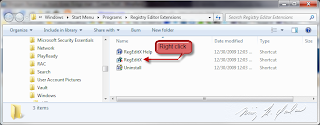
If you have been using Windows XP/Vista/7 for any length of time, you've probably come across a blog post or tutorial that tells you to 'edit the Registry'. Isn't it a PITA to open Regedit, then find your way to that key location? Enter RegEditX - an app that was last updated 4 July 2004. Yup, you read that right - an application that was written when Longhorn was in alpha stages works perfectly fine with Windows 7. In order to run, you need to make one small change after installation - the installation ends with the installer opening an explorer window with the Start Menu shortcuts, which suits our issue perfectly fine. Follow these steps to make it work.
1. Right click on the RegEditX shortcut icon (usually the middle icon) and select Properties
2. Go to the Compatibility tab

3. Click on the Change settings for all users at the bottom

4. Check the Run this program as an administrator at the bottom

5. Click OK all the way out of the dialog boxes.
In order to run it, you can open it via the Start menu, use the Start searchbar to find it, use the Run dialog to start it (enter RegEditX in the run box), and you can even pin it to the Start Menu and / or Taskbar just like any other app.
Here is what it looks like in Windows 7 - and why it is an indispensable tool:

Happy Registry editing!
Part I: RegEditX
If you have been using Windows XP/Vista/7 for any length of time, you've probably come across a blog post or tutorial that tells you to 'edit the Registry'. Isn't it a PITA to open Regedit, then find your way to that key location? Enter RegEditX - an app that was last updated 4 July 2004. Yup, you read that right - an application that was written when Longhorn was in alpha stages works perfectly fine with Windows 7. In order to run, you need to make one small change after installation - the installation ends with the installer opening an explorer window with the Start Menu shortcuts, which suits our issue perfectly fine. Follow these steps to make it work.
1. Right click on the RegEditX shortcut icon (usually the middle icon) and select Properties

2. Go to the Compatibility tab

3. Click on the Change settings for all users at the bottom

4. Check the Run this program as an administrator at the bottom

5. Click OK all the way out of the dialog boxes.
In order to run it, you can open it via the Start menu, use the Start searchbar to find it, use the Run dialog to start it (enter RegEditX in the run box), and you can even pin it to the Start Menu and / or Taskbar just like any other app.
Here is what it looks like in Windows 7 - and why it is an indispensable tool:

Happy Registry editing!
The beauty of multiple hard drives
So, I am a techy kinda guy, and I like having things different. Part of it is consistency, part of it is ease of usability, and part of it is sheer simplicity. Back when I was using XP, and honing my skills around an NT based OS (I ran 2000 on a laptop previously, but with the release of XP, I built a new machine around the OS), I figured out pretty quickly that the *nix methodology of using separate partitions for different aspects of the OS and applications and user space makes sense - perfect sense, logical sense, the kind of sense that transcends just logic and traverses into the realm of harmony, of righteousness, of that sense of everything being "right as rain" as the Oracle is fond of saying.
I learned how to make custom installs, thanks to a little gem of a find called nLite, at http://www.nliteos.com (Thanks Nuhi!), and I quickly used it not to cut out any real fat, as some users were prone to do with the OS, but to customize it to my own tastes - I forced it to install to a system that either had dual partitions, or else had dual HDs, and it moved the Entire Program Files tree as well as the Entire Documents and Settings tree to the second drive / partition. Why? The answer is not as complicated as you may think.
Ever notice how every tech support agent and all their cronies (not to mention System Administrators, Windows gurus, and virtually every other banner advertisement on the web, and of course,...ME!) advocates some sort of backup strategy to safeguard your DATA when you use a computer? Ever notice also how it is a PITA to try to figure out what to back up, and even then getting everything back in place is not always the easiest thing to do b/c of some of the idiosyncrasies of the way modern OSs (read: Vista / 7) save settings, extended settings, documents, etc.?
You're not alone - but I figured out very early that having separate partitions for the OS and applications from the data was vital. I later extended this to separate physical HDs. It has made re-installation of applications after an OS reinstall almost trivial - and that is a good thing, considering that I am testing no less than 10 apps on a daily basis, not to mention testing productivity applications, anti-malware applications, and for the last year (well, until Aug 9) even testing OSs. When you test things, you tend to need to restore items as fast as you can, but a lot of times the testing is more of an indefinite type of thing - I continue to keep the latest nightly build of Minefield (the Über Geek bleeding edge testing build of the next generation of Firefox), and it gets upgraded almost daily, and the same goes for most other Mozilla apps. Therefore, restoring is not much of an option, at least not for me - b/c on any given day, I'll have updated various Mozilla apps, updated the extension versions, updated malware definition files, etc. Therefore, for me, the best is to perform a clean install every now and again (usually 9-12 months).
OK, I know what you're thinking - I am a Mathematics major, and yet I cannot count the number of days from 9 August to 20 December??? Yeah, well, there was a bit of user shenanigans involved, and I basically did something I should not have done, and hosed my system. But, see, the good part is that *I* can afford to do that and be back up and running less than 24 hours later.
You see, when I was testing Windows 7, I realized that performing an upgrade of a heavily used system, particularly from Vista, took aeons - not to mention still messed things up with application compatibility issues. So, my age old strategy of using separate partitions / HDs came in handy in a big way with all the build releases of Windows 7, from 6801 all the way through the RC. I was able to perform a completely fresh install when needed, rather than upgrading, and therefore avoided a lot of the idiosyncrasies that some folks faced when upgrading over and over, and yet I was still able to use the OS as my daily OS on any given day.
With Vista and 7 both, you can move the location of certain special folders, namely Desktop, Favorites, (My ) Music, (My ) Pictures, (My ) Videos, (My ) Documents, Downloads, Saved Games, Contacts, Searches, and Links. This makes for an interesting time, b/c by moving all of those to separate partitions / HDs, you are effectively ensuring that, barring a complete multiple partition / total HD failure, that all of your documents, saved games, contacts, even pictures, videos, downloads and searches, will be saved in the even of an OS re-installation. Furthermore, it means that there is a *LOT* less that you actually have to back up in the even that you need to reinstall your OS. For more information on how to move these folders, for Vista see http://www.vistax64.com/tutorials/107990-personal-user-shell-folders-move-location.html and for 7 see http://www.sevenforums.com/tutorials/18629-user-folders-change-default-location.html.
Now, that leads me to my point: Installing the OS all over again is not the long drawn out process of having to install all your apps and configure them, and here is why. (This assumes that the OS re-installation is not caused by a major fault that also affected other partitions / HDs). When you go to reinstall, before you do, all you have to do is make a copy of the %USERDATA%\AppData folder onto some free space on a different HD (you'll need to enable viewing of hidden files and folders to do that - see http://www.sevenforums.com/tutorials/394-hidden-files-folders-show-hide.html?filter[2]=File%20Folder%20Settings), and you're off and running with the new OS install. The key is that that folder stores 99% of all of you program configuration data - everything from .ini and .xml files to .dat, .sqlite, etc. types of files. What's more, if you start exploring that AppData folder, you'll see some really interesting things.
First of all, there are three subdirectories, Local, LocalLow, and Roaming - the majority of your installed application settings will be in either Local, Roaming, or a combination of both. I simply keep an explorer window open to wherever I have copied the %USERDATA%\AppData folder to (in my case, F:\, so it ends up looking like F:\{username}\AppData\) and keep another explorer window open to the original %USERDATA%\AppData folder, and just copy and paste any relevant folders from the save copy to the live folder.
As an example, I'll use Firefox. Now, after the OS was installed, I simply ran a Firefox installer, choosing Custom at the initial screen (I don't use Desktop shortcuts nor QuickLaunch shortcuts, so I like to turn them off - plus, I like making sure that each build has it's own specific (and descriptive) folder name (luckily, Firefox has done just that, each installing into it's codename folder now). When the installation ends, be sure to uncheck the box next to Launch Firefox/Shiretoko/Namoroka/Minefield now. Now, from the saved copy (F:\{username}\AppData\) I copy \Local\Mozilla and \Roaming\Mozilla to %USERDATA%\AppData. Et voila! Now, when I run Firefox, it sees me profiles just like before and shows me my profile manager, allowing me to pick my profile based upon which build I installed.
After this is completed, any subsequent build installs can commence normally - no need to uncheck the last check box (although you will still want custom if you want to change other options).
It may seem like a lot of work - but, TBH, with my having planned for this previously, and with me having a nice, fast Cable modem connection, including downloading the 4 builds, and then installing them, I spent a grand total of 10 minutes installing and 'configuring' 4 different builds of Firefox. I spent about 7 minutes for 3 builds of Thunderbird, and about 5 minutes on the latest build of Songbird (I would have spent less, but prior to the crash I was still running Songbird 1.2, so the latest 1.4 build performed an addon check and update).
Oh, and this is pretty much how fast it goes every time I was cleanly installing Windows 7 Beta / RC. 10 applications, all perfectly configured, just like I had it before I wiped the OS, in under 25 minutes.
Not bad for an hour's work.
I learned how to make custom installs, thanks to a little gem of a find called nLite, at http://www.nliteos.com (Thanks Nuhi!), and I quickly used it not to cut out any real fat, as some users were prone to do with the OS, but to customize it to my own tastes - I forced it to install to a system that either had dual partitions, or else had dual HDs, and it moved the Entire Program Files tree as well as the Entire Documents and Settings tree to the second drive / partition. Why? The answer is not as complicated as you may think.
Ever notice how every tech support agent and all their cronies (not to mention System Administrators, Windows gurus, and virtually every other banner advertisement on the web, and of course,...ME!) advocates some sort of backup strategy to safeguard your DATA when you use a computer? Ever notice also how it is a PITA to try to figure out what to back up, and even then getting everything back in place is not always the easiest thing to do b/c of some of the idiosyncrasies of the way modern OSs (read: Vista / 7) save settings, extended settings, documents, etc.?
You're not alone - but I figured out very early that having separate partitions for the OS and applications from the data was vital. I later extended this to separate physical HDs. It has made re-installation of applications after an OS reinstall almost trivial - and that is a good thing, considering that I am testing no less than 10 apps on a daily basis, not to mention testing productivity applications, anti-malware applications, and for the last year (well, until Aug 9) even testing OSs. When you test things, you tend to need to restore items as fast as you can, but a lot of times the testing is more of an indefinite type of thing - I continue to keep the latest nightly build of Minefield (the Über Geek bleeding edge testing build of the next generation of Firefox), and it gets upgraded almost daily, and the same goes for most other Mozilla apps. Therefore, restoring is not much of an option, at least not for me - b/c on any given day, I'll have updated various Mozilla apps, updated the extension versions, updated malware definition files, etc. Therefore, for me, the best is to perform a clean install every now and again (usually 9-12 months).
OK, I know what you're thinking - I am a Mathematics major, and yet I cannot count the number of days from 9 August to 20 December??? Yeah, well, there was a bit of user shenanigans involved, and I basically did something I should not have done, and hosed my system. But, see, the good part is that *I* can afford to do that and be back up and running less than 24 hours later.
You see, when I was testing Windows 7, I realized that performing an upgrade of a heavily used system, particularly from Vista, took aeons - not to mention still messed things up with application compatibility issues. So, my age old strategy of using separate partitions / HDs came in handy in a big way with all the build releases of Windows 7, from 6801 all the way through the RC. I was able to perform a completely fresh install when needed, rather than upgrading, and therefore avoided a lot of the idiosyncrasies that some folks faced when upgrading over and over, and yet I was still able to use the OS as my daily OS on any given day.
With Vista and 7 both, you can move the location of certain special folders, namely Desktop, Favorites, (My ) Music, (My ) Pictures, (My ) Videos, (My ) Documents, Downloads, Saved Games, Contacts, Searches, and Links. This makes for an interesting time, b/c by moving all of those to separate partitions / HDs, you are effectively ensuring that, barring a complete multiple partition / total HD failure, that all of your documents, saved games, contacts, even pictures, videos, downloads and searches, will be saved in the even of an OS re-installation. Furthermore, it means that there is a *LOT* less that you actually have to back up in the even that you need to reinstall your OS. For more information on how to move these folders, for Vista see http://www.vistax64.com/tutorials/107990-personal-user-shell-folders-move-location.html and for 7 see http://www.sevenforums.com/tutorials/18629-user-folders-change-default-location.html.
Now, that leads me to my point: Installing the OS all over again is not the long drawn out process of having to install all your apps and configure them, and here is why. (This assumes that the OS re-installation is not caused by a major fault that also affected other partitions / HDs). When you go to reinstall, before you do, all you have to do is make a copy of the %USERDATA%\AppData folder onto some free space on a different HD (you'll need to enable viewing of hidden files and folders to do that - see http://www.sevenforums.com/tutorials/394-hidden-files-folders-show-hide.html?filter[2]=File%20Folder%20Settings), and you're off and running with the new OS install. The key is that that folder stores 99% of all of you program configuration data - everything from .ini and .xml files to .dat, .sqlite, etc. types of files. What's more, if you start exploring that AppData folder, you'll see some really interesting things.
First of all, there are three subdirectories, Local, LocalLow, and Roaming - the majority of your installed application settings will be in either Local, Roaming, or a combination of both. I simply keep an explorer window open to wherever I have copied the %USERDATA%\AppData folder to (in my case, F:\, so it ends up looking like F:\{username}\AppData\) and keep another explorer window open to the original %USERDATA%\AppData folder, and just copy and paste any relevant folders from the save copy to the live folder.
As an example, I'll use Firefox. Now, after the OS was installed, I simply ran a Firefox installer, choosing Custom at the initial screen (I don't use Desktop shortcuts nor QuickLaunch shortcuts, so I like to turn them off - plus, I like making sure that each build has it's own specific (and descriptive) folder name (luckily, Firefox has done just that, each installing into it's codename folder now). When the installation ends, be sure to uncheck the box next to Launch Firefox/Shiretoko/Namoroka/Minefield now. Now, from the saved copy (F:\{username}\AppData\) I copy \Local\Mozilla and \Roaming\Mozilla to %USERDATA%\AppData. Et voila! Now, when I run Firefox, it sees me profiles just like before and shows me my profile manager, allowing me to pick my profile based upon which build I installed.
After this is completed, any subsequent build installs can commence normally - no need to uncheck the last check box (although you will still want custom if you want to change other options).
It may seem like a lot of work - but, TBH, with my having planned for this previously, and with me having a nice, fast Cable modem connection, including downloading the 4 builds, and then installing them, I spent a grand total of 10 minutes installing and 'configuring' 4 different builds of Firefox. I spent about 7 minutes for 3 builds of Thunderbird, and about 5 minutes on the latest build of Songbird (I would have spent less, but prior to the crash I was still running Songbird 1.2, so the latest 1.4 build performed an addon check and update).
Oh, and this is pretty much how fast it goes every time I was cleanly installing Windows 7 Beta / RC. 10 applications, all perfectly configured, just like I had it before I wiped the OS, in under 25 minutes.
Not bad for an hour's work.
Some really great Windows 7 Tutorials
If you find yourself with a new Windows 7 PC, and you need some help trying to accomplish a particular task, well, there probably a tut for that (yes, digs at Apple® are gonna happen here).
Over at SevenForums.com, you can find a wide variety of tutorials, from simply things like how to pin a folder to the taskbar, to more complex items, such as moving the location of user folders, run apps with elevated privileges, and more.
Head on over to http://www.sevenforums.com/tutorials/ and learn to your hearts content.
Over at SevenForums.com, you can find a wide variety of tutorials, from simply things like how to pin a folder to the taskbar, to more complex items, such as moving the location of user folders, run apps with elevated privileges, and more.
Head on over to http://www.sevenforums.com/tutorials/ and learn to your hearts content.
Thursday, December 24, 2009
Hell, World!
Being a programmer, it is almost obligatory to start out any project, especially in a medium / language unfamiliar to you, with a typical simple program called, appropriately, "Hello, world!" As I am rather new to blogging on any sort of regular schedule, let this serve as my obligatory introductory post.
"Hello, world!"
There. That's done. Now, let's get down to basics.
First, there is the "Who the heck are you, anyway?" question. You are more than welcome to read my bio for some info, but the skinny of it is this: I am a nontradtional senior in college majoring in Computer Science *and* Mathematics (dual majors) with eyes on going to grad school for Computational Finance (aka Financial Engineering). I am approaching middle age, having worked in IT for well over a decade, and have decided that a change of scenery was required. (OK, I really decided that I was tired of being single, working contract jobs, and generally having little stability, so I decided to do what I should have done 20 years ago).
My parents are Indian emigrants to the US, but I was born here in the good old US of A, and since I am now over 35, I meet the 2 requirements for running for the office of President of the United States. Whether I actually do this is a completely different thing, but you get the picture.
So, now that you know a little about me, I suppose you have some questions. Well, I ahve some answers - but I am not going to blog them. Rather, I am going to respectfully request that you address them in a private channel - GTalk / email is good.
If you feel the need to get an idea of what types of things I am going to be blogging about, feel free to follow me on Twitter - @nkyadav / http://www.twitter.com/nkyadav
Finally, a clue to the name of my blog: The easiest way to get people around me to say my name, Niraj, is to describe it as a mashup of the words Knee and Ridge. Get it?
I'll see you on twitter. Or GTalk. Or Email. Wherever.
"Hello, world!"
There. That's done. Now, let's get down to basics.
First, there is the "Who the heck are you, anyway?" question. You are more than welcome to read my bio for some info, but the skinny of it is this: I am a nontradtional senior in college majoring in Computer Science *and* Mathematics (dual majors) with eyes on going to grad school for Computational Finance (aka Financial Engineering). I am approaching middle age, having worked in IT for well over a decade, and have decided that a change of scenery was required. (OK, I really decided that I was tired of being single, working contract jobs, and generally having little stability, so I decided to do what I should have done 20 years ago).
My parents are Indian emigrants to the US, but I was born here in the good old US of A, and since I am now over 35, I meet the 2 requirements for running for the office of President of the United States. Whether I actually do this is a completely different thing, but you get the picture.
So, now that you know a little about me, I suppose you have some questions. Well, I ahve some answers - but I am not going to blog them. Rather, I am going to respectfully request that you address them in a private channel - GTalk / email is good.
If you feel the need to get an idea of what types of things I am going to be blogging about, feel free to follow me on Twitter - @nkyadav / http://www.twitter.com/nkyadav
Finally, a clue to the name of my blog: The easiest way to get people around me to say my name, Niraj, is to describe it as a mashup of the words Knee and Ridge. Get it?
I'll see you on twitter. Or GTalk. Or Email. Wherever.
Subscribe to:
Posts (Atom)